Create Authoring: Highlighting Objects Using Shapes

There a many tools within Create to draw a users attention to an object such as color change, highlight spheres, and outline materials. Today we will be looking at a way to bring attention to an object and partially isolate the object for viewing.
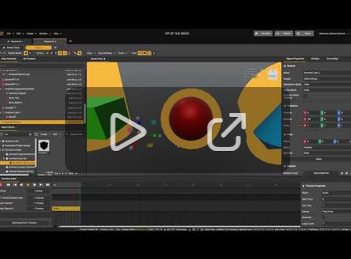
Searching through the Asset Library, you'll find the Inverted Sphere and we are currently working on adding other inverted primitive and deformable objects to that list. Using these objects allows you to see through the front of the object and use the back faces of the object. This allows you to draw attention to anything within that shape while isolating it from objects that would be seen behind.
The ideal material to use with an inverted shape is a DiffuseUnlit Material Preset with any color of your choosing. This allows the shape to appear as a solid color while also flowing perfectly into any callout that may be used.
If you would like to create your own inverted object you can do so right here in Create! Navigate within the Asset Library to the object you'd like to invert. Right click that object and select "Optimize Asset". Select the "Advanced" tab and add an operation. Be sure to select your node using the node selection tool and change your Category to "Object Editing" and the Command "Invert Faces Orientation". Click to confirm at the bottom right of the window.
You can monitor the process by navigating to Windows>3D Asset Optimizer. Once the process is finished you'll see that your original model in the asset library has a dropdown arrow that contains the new revision.
Note: These inverted objects are newly added to the Create Environment.
If you'd like to download the assets for your own use then please click the download link below.
Please sign in to leave a comment.
Comments
0 comments