Create Authoring: Scene Transitions using Timeline Action

When authoring a sequence, you'll often find yourself needing to move the user to a different area of the equipment. Where you need to simply open doors to view internal components or you need to move to a different side of a machine, it's always a good practice to never jump the camera to a new section without revealing to the user their new content or position. This can be accomplished using a scene transition step. In short, a scene transition step is a step with no interactive elements and is used as a guiding point for the user to follow along with between changes in the scene.
In order to create a good transition step you need to consider where and what you're viewing before the transition. Then consider where and what you want to show your user after the transition. Knowing this will allow you to plan what you'll be animating in your scene transition and if you'll need to show a camera movement to a new location as well.
Begin by creating a new step from where your user currently is before the transition.
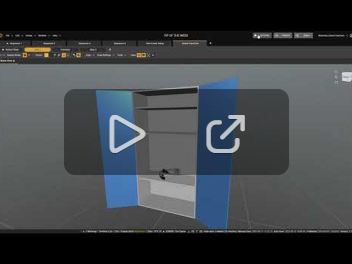
In this new step we'll be animating any changes we need to convey to our user. We can even animate a new inset camera if we need our Standalone Mode or Device Mode user to relocate to a new position.
Once all of our animations are finished, we can add the "Move to Step" action in the timeline editor and position it at the end of the timeline. This will make it so once the transition step plays through, we will move our user to the step we animated our transition to.
The "Move to Step" action is also very handy for transitioning out of any step that simply needs to show an action happening once on a machine and you don't want to make your user tap the "Next" button to move forward.
Please sign in to leave a comment.
Comments
0 comments