Create Authoring: Making Catalogs (Public & Private)

Yesterday (October 30, 2023) we posted a public QR code that lets anyone load our Happy Halloween AR scenario with a quick message, and an interactive element that makes the jack o'lantern perform a quick jump scare (BOO!). In today’s tip I’m going to quickly show you how to set up a QR code that you can use to share content with anyone in your organization, or use the public catalog option to share with users even if they don’t have a WorkLink license.
You need to be an admin in your WorkLink company to create catalogs, but as long as you are, you’ll see that under Content, you have an option to look at Scenarios or Catalogs here.
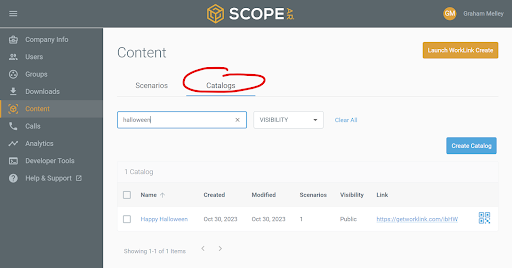
A catalog is basically just a short list of scenarios, which in this case is just one.
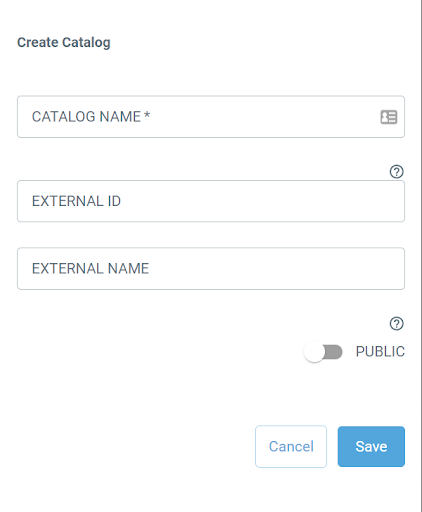
If you click “Create Catalog” you’ll see that you can assign a name for your catalog, as well as some optional ID fields. If your contract includes the option, you can also check the “Public” option to make your catalog is available to anyone.
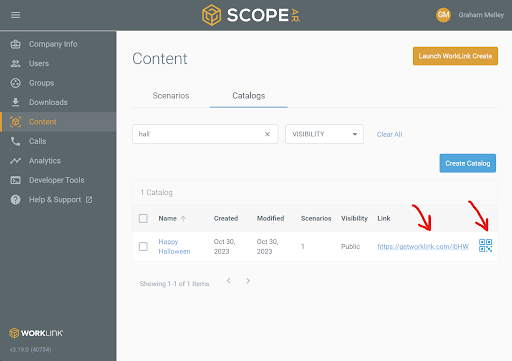
Once created, you can see that each catalog will have its own direct weblink which will launch (and install if necessary) the WorkLink viewer app and then load that list. Immediately next to that you will also be able to download the associated QR code that allows you to access that link via a mobile device’s camera!
Have a Happy Halloween and thanks for using WorkLink!
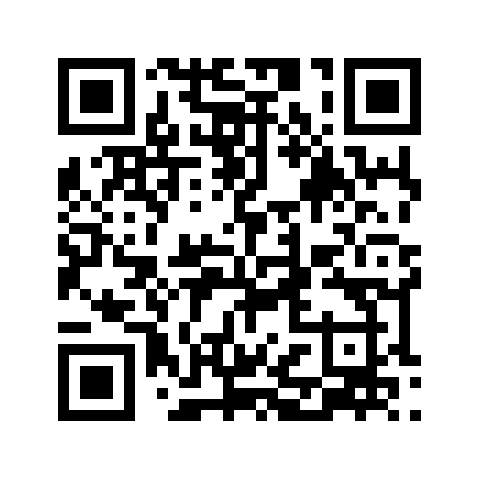
To try the Halloween message catalog scan the QR code or follow the link from your mobile device.
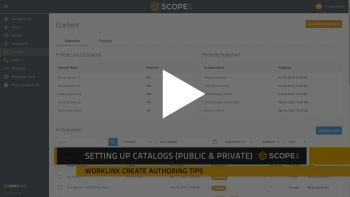
For the video walkthrough of this tip click here:
Please sign in to leave a comment.
Comments
0 comments