Create Authoring: Separating Objects Using The Asset Optimizer

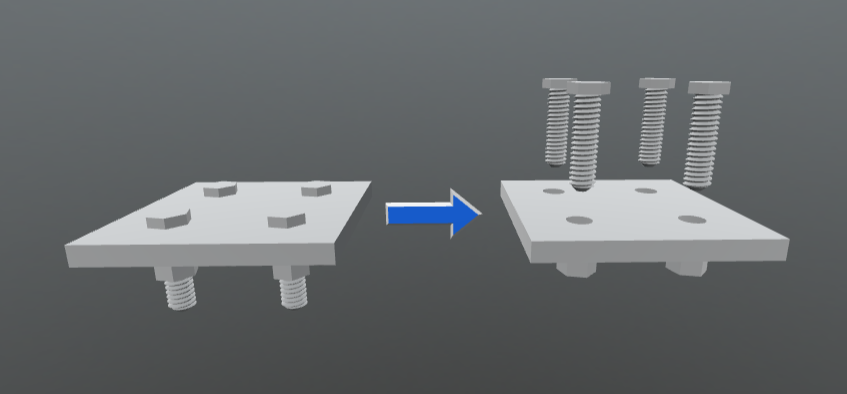
After the initial import of your CAD data, you may notice that some parts are joined together depending on their file type and export settings. No need to fear though because Create has tools built directly into the Asset Optimizer that can be used to separate each part of that imported file into it's own individual object.
To begin the process, let's navigate to the imported file in the asset library. Right click your file and select "Optimize Asset". This will open a new floating window for the Asset Optimizer and select the "Advanced" tab
If you are performing this operation on the initial import of the CAD, select the Source File "Initial" and give a new name to indicate the separation.
Now let's add a new operation by selecting the "Add Operation" button at the bottom right.
In the new operation, let's first select our node we'd like to separate by selecting "Click to select nodes".
If you'd like the entire file separated to individual objects, you can select the top node
If you'd like to separate certain objects within the file, you can simply navigate to those nodes and select them holding ctrl.
Next we'll navigate to the operation by selecting the category "Object Editing" and the Command "Explode Connected Meshes"
Once you are ready to begin the process, simply click the "Confirm" button at the bottom right of the Asset Optimizer window.
You can keep an eye on the process by navigating to Windows>Asset Optimizer.
Once the processing is complete you'll now see the newly exploded model nested under the uploaded in your Asset Library. 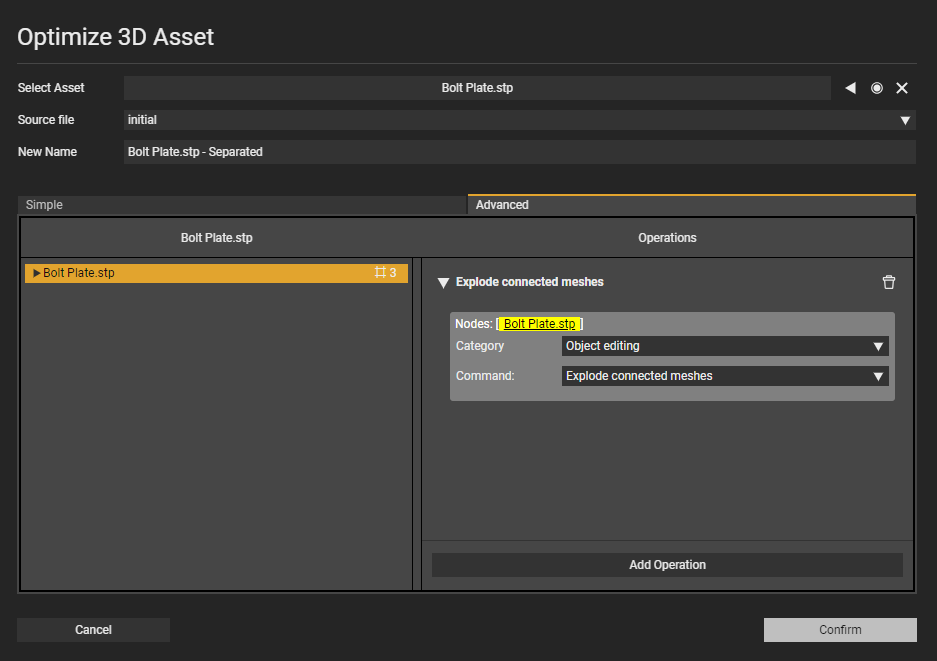

Please sign in to leave a comment.
Comments
0 comments