Create Authoring: Creating a Seamless Loop

((Watch the video tutorial here))
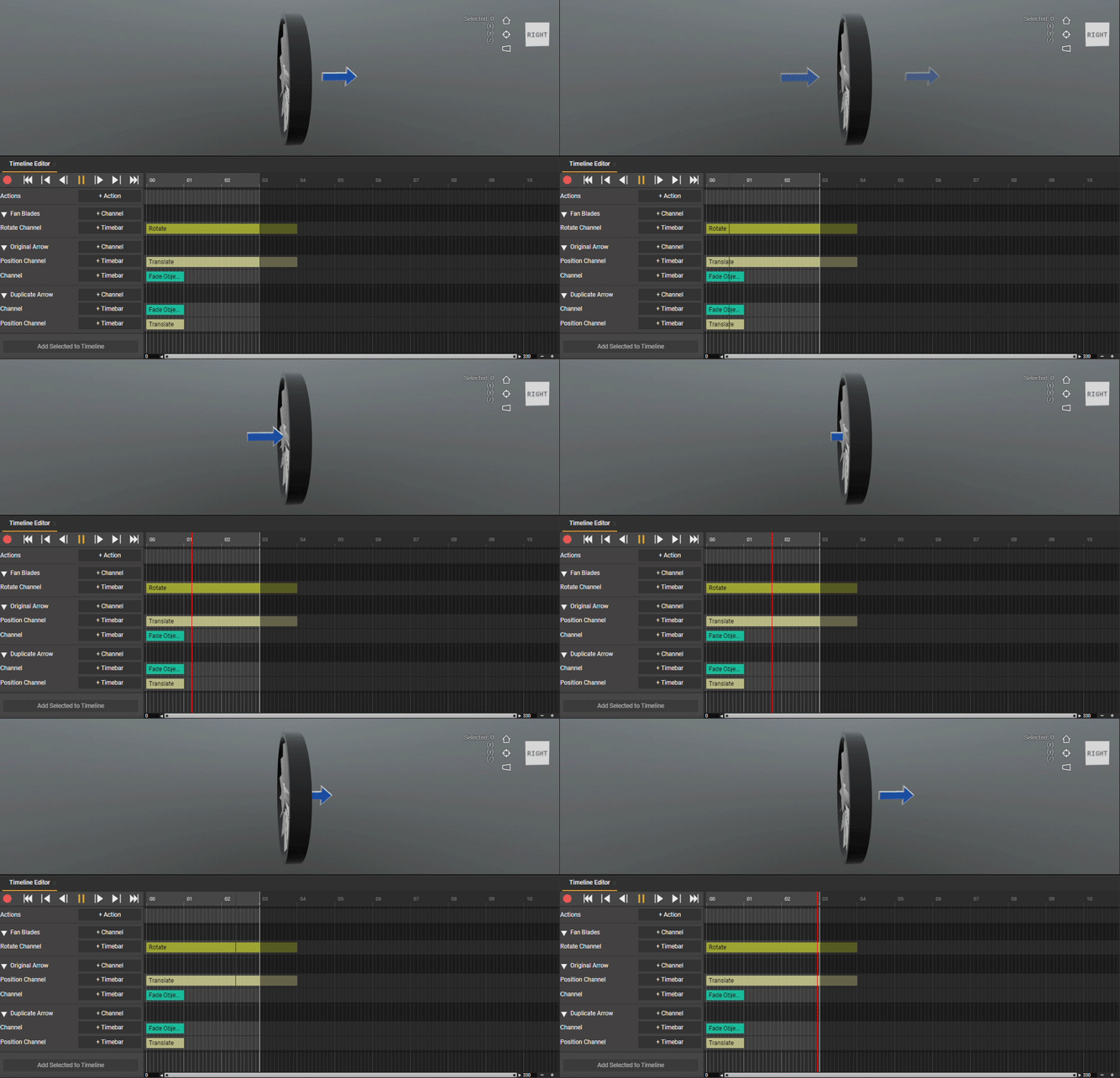
Having a perfect loop in an animation isn't only satisfying to watch, but it's important when conveying a cycle to your end user. Whether it's the flow of cold air or direction of hot water, properly portraying a constantly moving source is an important skill as an author. The following section will provide a step-by-step process for creating multiple source arrows that fade in, move along their path, then fades out.
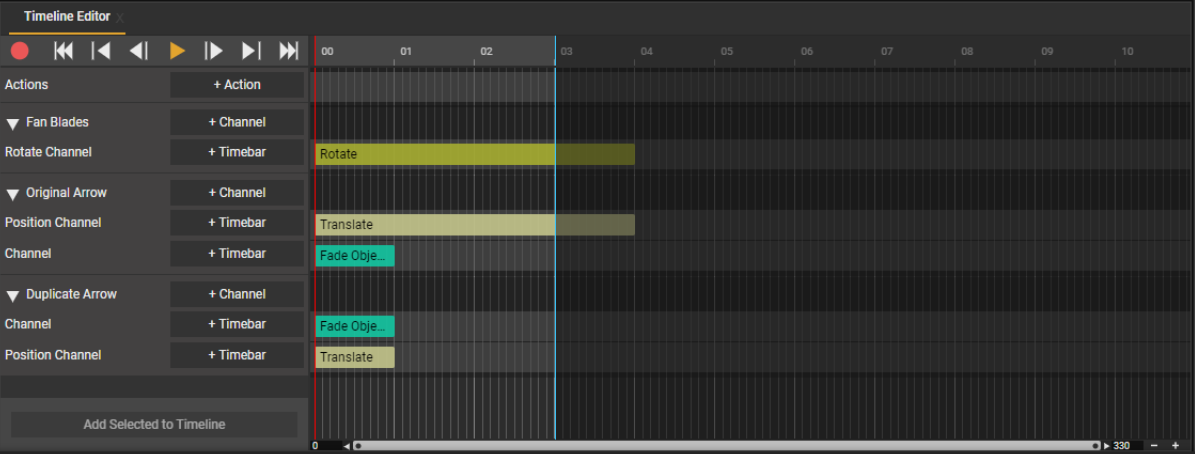
First, create the initial path for your arrow translating it's position from the starting position to the ending position. Span that newly made translate timebar as you see fit with your animation. For this example I'll be expanding the timebar for 4 seconds.
Next, scrub the timeline to the 3 second mark. Select your arrow and copy it's position. This is the position we'll use to make the fade and cut. Right click the arrow in your Step Hierarchy and create a duplicate. We now have two arrows in our scene, our first arrow that is animated to 4 seconds and our new arrow that has no animation yet.
with our position of our first arrow copied at the 3 second mark, let's paste that data into our 2nd arrow's position by selecting our duplicate arrow, right clicking its Transform in the Object Properties and selecting Paste. The duplicate arrow is now at the first arrows 3 second mark position.
Now, scrub to the 4 second mark on your timeline and copy the original arrows position again. With that information copied, let's animate the duplicate arrow to that new position by hitting the Record button on the timeline editor, selecting and moving the arrow towards the direction we want to animate it, and then pasting that information into it's Transform property. Hit the Record button again to stop recording and we should now have a 1 second clip of the Duplicate arrow moving. Move this timebar to the beginning of the timeline so you can see both arrows moving at the same time to their respective locations.
In the timeline, set your loop point at the 3 second mark by simply right clicking the "03" on the timeline editor.
Play the animation and you'll see that your two arrows should be in sync with each other and when your original arrow disappears at the 3 second mark, your duplicate arrow is there to seamlessly continue the animation at the same speed.
Add a fade in to the original arrow and a fade out to the duplicated arrow and you'll have a perfectly synchronized looping animation.
Please sign in to leave a comment.
Comments
0 comments