Create Authoring: Immersive Video and Audio playback

View the video version of this tip
Dreaming of a 100’ TV and Dolby Atmos surround sound but on a budget? Look no further than 3D audio and video playback in WorkLink Create! This Tip of the week will cover how to imbed audio and video files into the 3D AR scene to make AR content more immersive.
Create supports importing audio files (.mp3) and video files (.mp4) into the Asset library for use in AR projects.
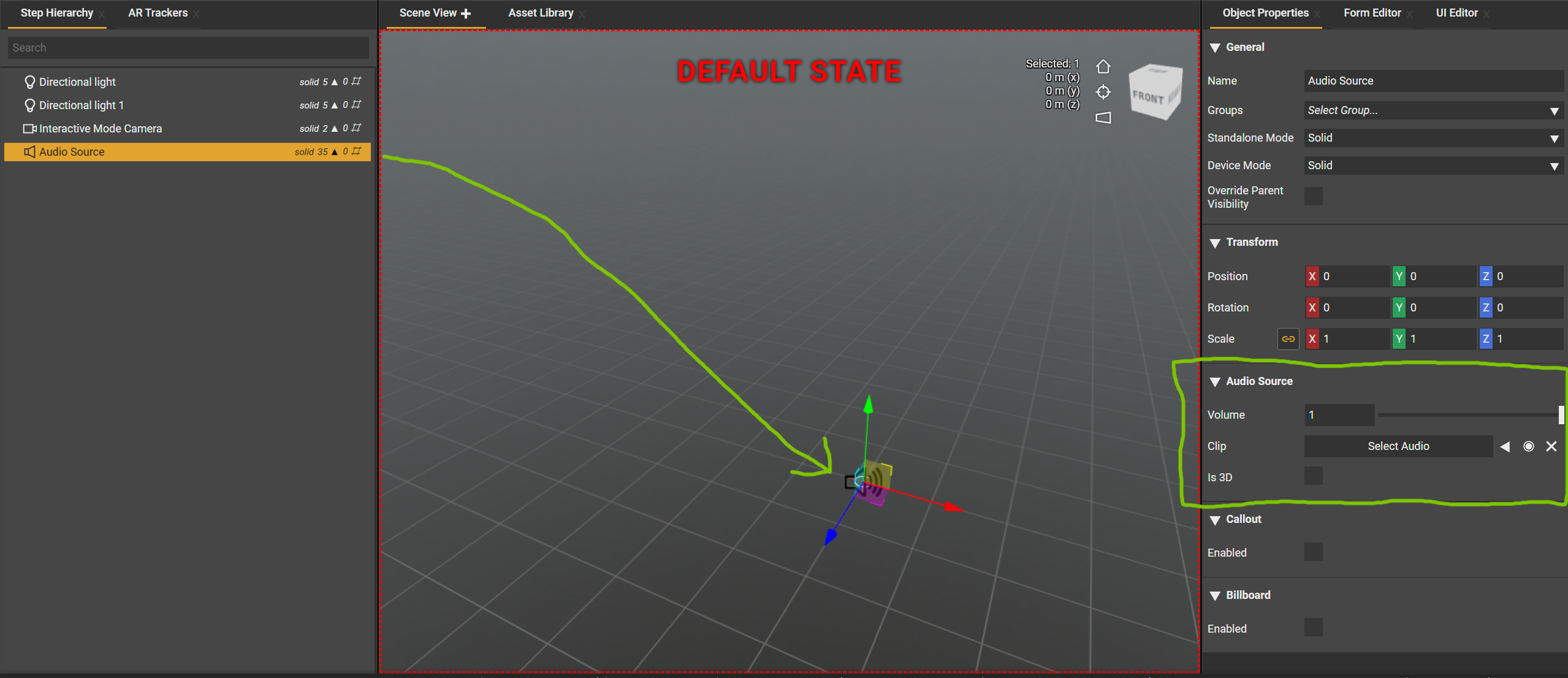
Audio playback can be used for everything from custom voice overs to accentuated warnings to creative jumpscares! To playback an audio file, use the ‘create’ dropdown to add an Audio Source sprite to your scene. In its object properties, select the audio file it should playback, the volume, and optionally choose the ‘Is 3D’ toggle to make the audio playback from its location in 3D space instead of ‘from everywhere’ (3D is a particularly cool effect for users with a wearable headset).
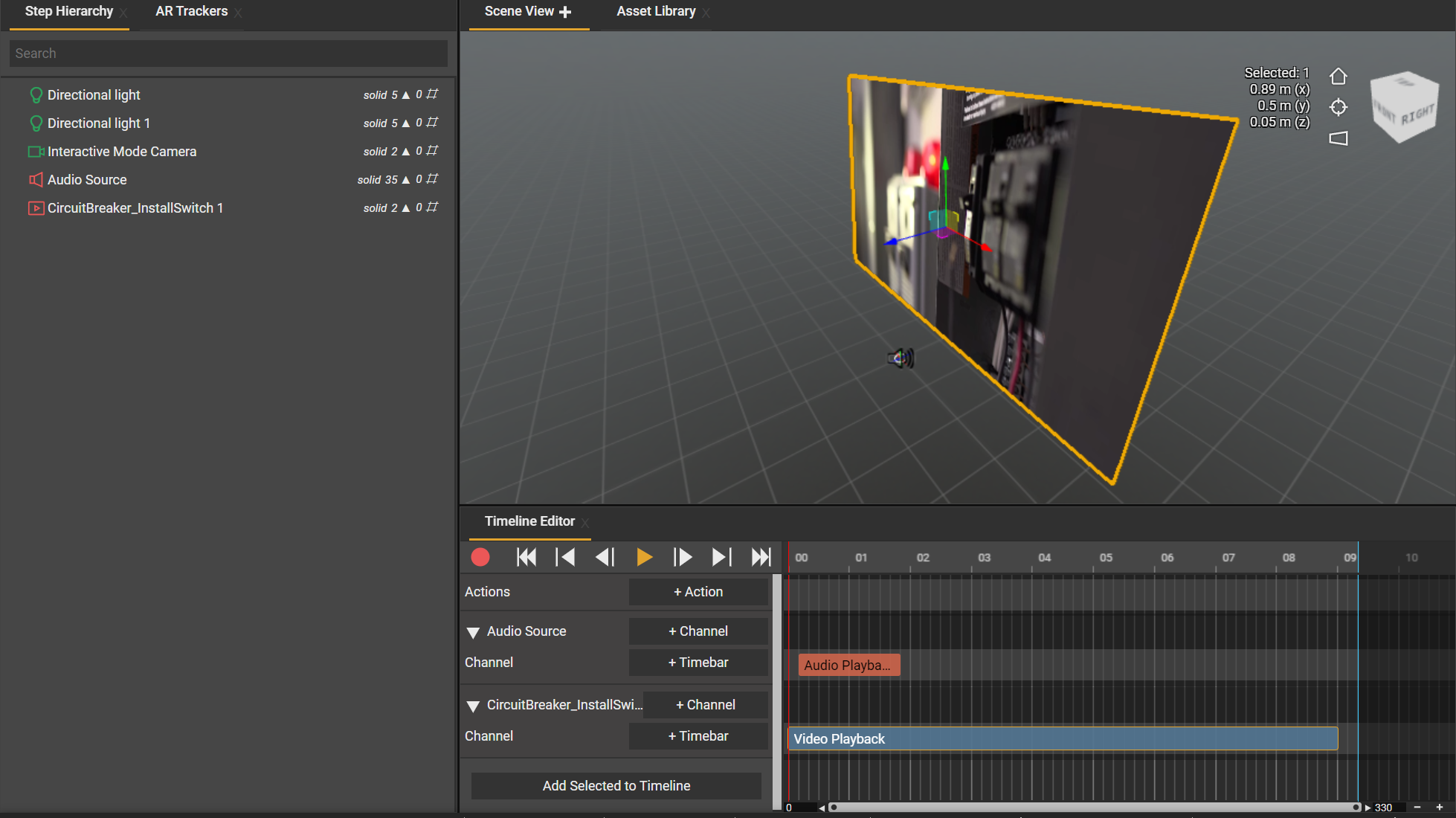
Then, add the audio sprite to the timeline and create an “Audio Playback” timebar. The audio file will start playing back when the timebar starts.
For video files, drag the .mp4 file directly into the Scene or Step Hierarchy. It can then be positioned, rotated and scaled like any other 3D element (including making it the size of an IMAX screen). Add the .mp4 file to the timeline editor and create a Video Playback timebar as long or longer than the video’s length. The video will playback when the timebar starts. If the video file includes audio, this will be played as well and it’s volume can be controlled in the timebar properties.
Now you can experience your favorite content with complete immersion using Worklink Create!
Note: it is recommended that video files be short and the minimum required resolution to achieve the desired result. Large video files may cause longer load times and lower framerate.
-

Hi - does the audio source object change in volume based on how far away you are standing from it? And does it work in stereo? It would be neat to use a 'ping' sound perhaps combined with a highlight sphere to draw someone's attention to a faraway item, and if they heard it to their left maybe it'd make them look left...
0 -
Peter Lund If you select the 'In 3D' for the audio source then the sound will be directional (in stereo) and is meant to be used for 'pinging' in a certain direction. The volume is controlled by the slider in object properties but is not distance dependent.
0
Please sign in to leave a comment.
Comments
2 comments